Settings
Every entry in the desktop's Space settings is described here. Some pages have more detailed standalone documentation, which is linked in the corresponding section.
Apps & containers
App management
Install APKs, import desktop apps, and manage virtual apps and instances. For details, see App installation & management.
Host control (root)
Requires a rooted device and su access for NestSpace.
- When enabled, the AI assistant and MCP get
host_*tools to observe, tap, type, take screenshots, launch apps and open URLs on the whole real device, not just the virtual space. - Turning it off removes those tools from the assistant and MCP tool lists immediately.
- Every enable attempt re-checks su; the switch cannot be turned on when root is unavailable.
- These are powerful permissions; only use them on a trusted device.
See MCP tool reference.
Container slots
The container process pool has a maximum of 16 slots, and each slot corresponds to an independent container process.
- Automatic (default): Managed dynamically based on memory, with all 16 slots available. When memory is tight, the least recently used background containers are closed first; foreground containers are not closed.
- Fixed preset: Limits the number of container processes that can run at the same time (1–16). Lowering the limit immediately ends processes beyond the limit.
Changes take effect immediately. App data is not lost when processes are ended.
Location simulation
Simulates coordinates for apps inside the virtual space:
- While enabled, virtual apps receive the latitude and longitude configured on the page through
LocationManager, with 5 m accuracy by default. - Only virtual apps are affected; the real device location is never changed and root is not required.
- The app still needs location permission; running apps may need to be reopened before they use the new coordinates.
- Apps that use their own location service (some map SDKs or Google Play services) may still return the real position.
Container self-check
Runs a set of automatic checks to confirm that basic container capabilities are working:
- Launching a virtual app;
- Reading the interface and taking screenshots;
- Isolated process;
- WebView;
- MCP server.
Each result is marked as passed, partially passed, failed, or skipped, and you can copy the full report. When troubleshooting compatibility issues or reporting an issue, including the self-check report is very helpful.
Browser proxy
Configures an HTTP or SOCKS proxy for the built-in browser:
- All tabs and browser downloads share the same proxy.
- Supports comma-separated bypass rules.
- Requires Android 10+ and WebView support for
PROXY_OVERRIDE. - Proxies that require a username and password are not currently supported.
For details, see Built-in browser.
Assistant
Model settings
Configures the model endpoints used by the AI assistant, with support for both Claude-compatible and OpenAI-compatible protocols. You can save multiple configurations and switch between them. Each configuration contains:
- Protocol;
- Base URL;
- API Key;
- Model name;
- Context token limit;
- Maximum number of tool calls per turn.
The API Key is encrypted with the Android Keystore, and no tool result ever returns it in plaintext. Tapping Test connection sends a real request.
For details, see AI assistant.
System prompt
All models share a single system prompt. You can edit and save it, or restore the built-in default with one tap. At runtime, NestSpace also automatically appends the current time, memories, the skill index, and tool rules.
MCP tools
Configures external MCP Servers so the local AI assistant can use more tools:
- Supports multiple Streamable HTTP endpoints;
- Uses Bearer Token authentication;
- The Token is encrypted with the Android Keystore;
- Refreshing requests
initialize/tools/list; - Tool names are exposed to the local assistant with an
mcp_<short-service-id>_prefix.
External tools are not exposed to remote MCP clients, and remote clients cannot call them directly. For details, see MCP control service.
Memory & skills
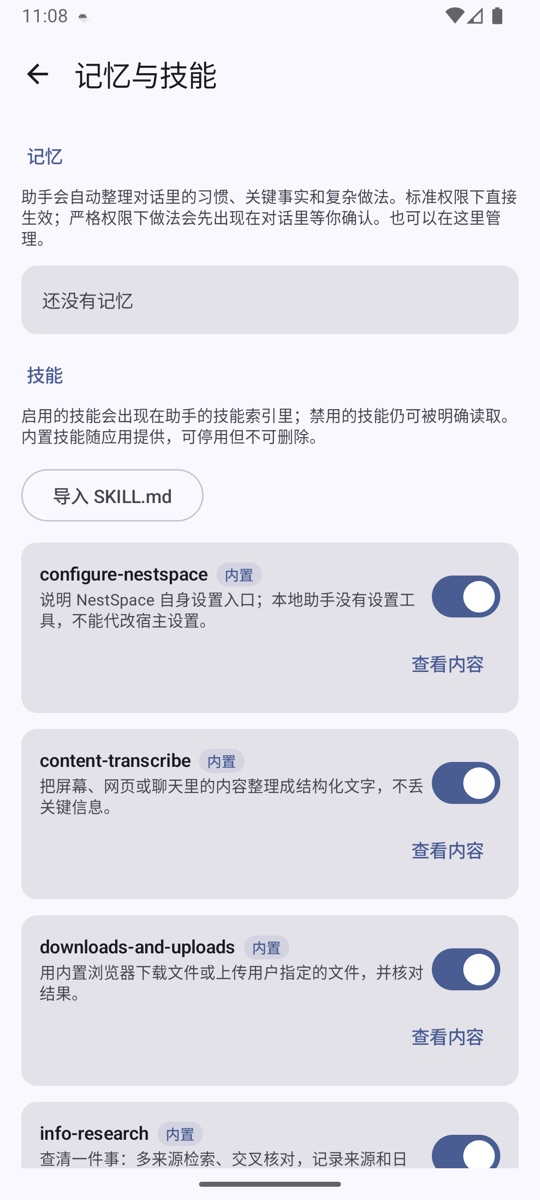
- Memories: After each conversation turn, the assistant automatically organizes facts, preferences, and procedures. Facts and preferences take effect directly; procedures take effect directly under Standard/Loose permissions, while in Strict mode or when Risky taps confirmation is enabled in Custom mode, a confirmation card is shown first. You can pin, approve, or delete them.
- Skills: 7 are built in. The assistant automatically drafts skills from successful multi-step tasks; new skills are always disabled by default and an enable card is shown in the conversation. Each use records success or failure; 2 failures in the most recent 3 uses disable a skill automatically, and the count restarts after you re-enable it manually.
- Custom skills can be edited, can import
SKILL.md, and support version history and restoring older versions. Built-in skills can only be disabled; they cannot be deleted or overwritten.
Memories and skills are stored in the app-private directory using encrypted storage. When needed, relevant entries are sent to the currently configured model service as part of the system prompt and are not uploaded to any other server. Passwords, verification codes, bank card details, and ID card information are not recorded automatically.
Scheduled tasks
Lets the assistant create scheduled tasks, such as "check the weather every morning at 9 and tell me only if it will rain". Supports:
- One-time;
- Daily;
- Weekly;
- Fixed interval.
When a task is due, it runs in the original conversation and sends a result notification. Tasks are scheduled by the system alarm; if NestSpace is completely stopped by the system, scheduling resumes the next time it starts.
Evaluation & replay
Tests the Agent with real tasks and records the tool trace and results of each run. After a successful run, you can save the flow as a replay and run it again later.
Child runs
View child Agents created by spawn_agent:
- Status and results;
- Stop a running child task;
- Results are treated as untrusted data and are only used as reference for the main Agent.
Token usage
View the model input tokens, output tokens, and thinking tokens for each request, to estimate usage and cost.
Permissions
Controls whether the assistant needs confirmation before performing sensitive actions:
| Level | Behavior |
|---|---|
| Strict | Installation/uninstallation, permission changes, risky taps, downloads, and more all require confirmation; reusable procedures also ask for confirmation first |
| Standard | Adds app installation/uninstallation confirmation on top of Loose; memories and automatically drafted skills are saved directly (skills are disabled by default) |
| Loose | Only money-related actions such as payments, checkout, transfers, and red packets prompt for confirmation |
| Custom | You choose which categories require confirmation |
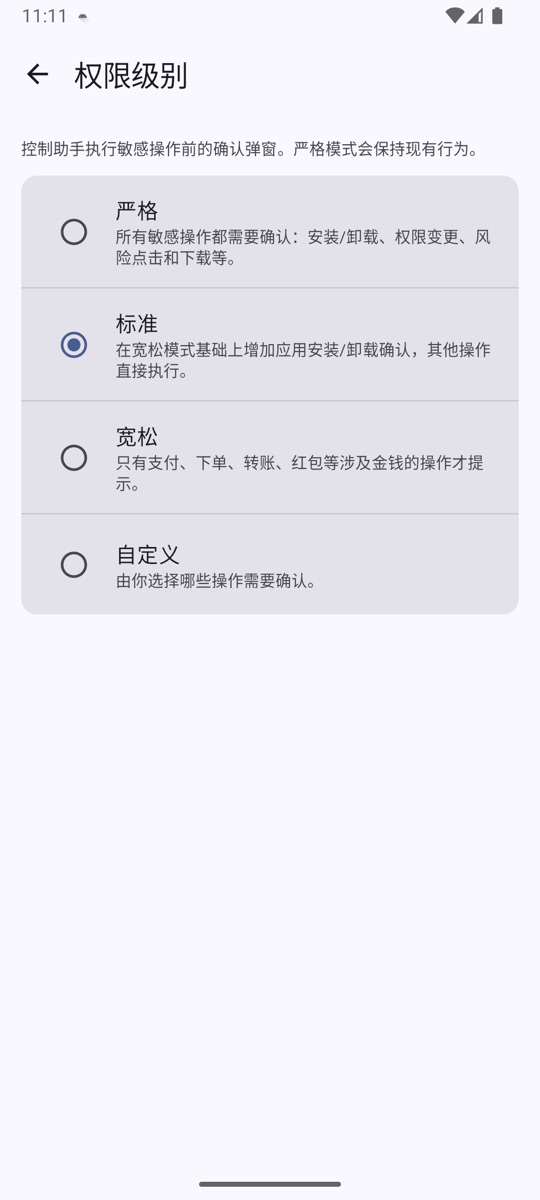
The categories that can require confirmation include installation, permissions, downloads, risky taps, and more. Memory and skill learning are not considered sensitive actions; only in Strict mode, or in Custom mode with Risky taps confirmation enabled, do reusable procedures first ask for confirmation. Automatically drafted skills are always disabled by default and must be enabled manually in the conversation card or on the Memory & skills page. Remote MCP clients are not affected by this setting; remote tool calls are controlled by the client itself.
Floating dot
- Turn the Floating dot on or off;
- Set its color on the host UI and inside containers;
- Adjust opacity;
- Choose the speech language;
- Adjust its position;
- Download or delete offline speech models.
The first time you enable it, you must grant the "Display over other apps" permission. The Floating dot is a shortcut to the voice assistant. For details, see AI assistant.
MCP control service
Starts and stops the externally facing MCP Server, shows the local and LAN addresses and Token, and displays the overlay permission status required for background launch.
For details, see MCP control service.
Desktop & language
Desktop wallpaper
Choose, change, or clear the desktop wallpaper. The wallpaper is stored inside the app and is cleared when NestSpace is uninstalled.
Language
- Follow system;
- Chinese;
- English.
The interface refreshes immediately after a change.
About
Displays the current version number and project information.