App installation & management
Entry point: Space settings → App management.
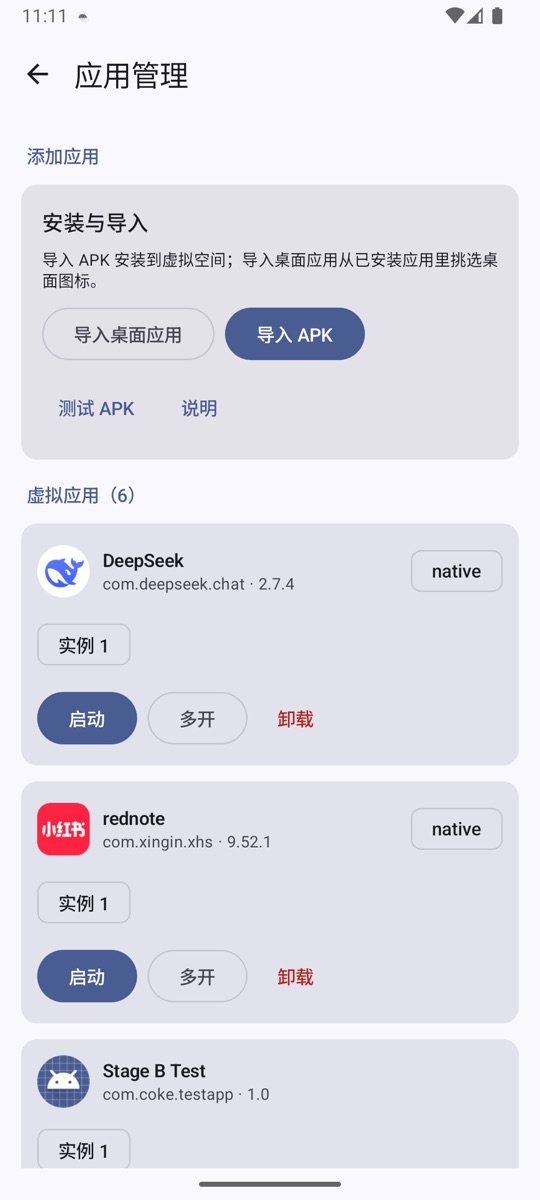
This page is divided into three sections:
- Install & import: Import APK, Import desktop apps, Test APK.
- Virtual apps: Apps that have been installed inside NestSpace.
- Desktop apps: System apps currently placed on the desktop.
Import APK
- Tap Import APK.
- Select the APK in the system file picker.
- Wait for parsing and installation to finish.
For a regular app, selecting a single APK is enough. For a split app, select all files at once:
Selecting only the base leaves out code, native libraries, or resources, and the app may fail at launch.
The import process performs the following checks:
| Check | Behavior on failure |
|---|---|
| Package name | Rejects installation |
| Signature consistency | If a record exists for the same package name but the signature differs, returns SIGNATURE_MISMATCH |
minSdk |
Rejects installation if it is higher than the current system version |
REQUIRE_SECURE_ENV |
Returns SECURE_ENV_REQUIRED if the target declares a secure environment requirement |
| ABI | Installation succeeds; at launch, returns ABI_MISMATCH if there is no matching native library |
After a successful install:
- The APK is copied into NestSpace's app-private directory and no longer depends on the original file.
- The app appears on the desktop and in the Virtual apps list.
- The installation record is persisted and remains after restarting the app.
Virtual apps list
Each app has one row containing:
- The app icon, name, package name, and version.
- An instance selector (Instance 1, Instance 2, ...).
- Launch: Opens the currently selected instance.
- Duplicate: Creates a new instance and launches it.
- Uninstall: Deletes the APK and all instance data.
The first time an app is launched, Instance 1 is created automatically. After that, tapping Duplicate creates instances 2, 3, and so on.
Instance and data isolation
Each instance has its own:
filescachecode_cachedatabasesgetDir- SharedPreferences namespace
- Native library extraction directory
As a result, the same app can be signed in to two accounts at the same time, and the two instances cannot read each other's data. Instances of different apps are isolated from each other as well.
Data directory structure:
/data/user/0/com.coke.nestspace/files/vspace/
  apps/<package>/...         Installed APKs
  data/<package>/<instance>/ Instance data
Number of apps that can run at once
The container process pool is managed automatically by default and has a maximum of 16 slots. When memory is tight, the least recently used background container is closed; foreground containers are not closed. You can also set a fixed limit (1–16) in Space settings → Container slots.
Import desktop apps
Import desktop apps only affects what is shown on the desktop; it does not copy or install apps:
- Tap Import desktop apps.
- Select the installed apps you need.
- Clear a selection to remove that app from the desktop.
Virtual apps do not need to be selected; they appear automatically after installation.
Test APK
Test APK is a shortcut for developers to verify container capabilities. It does not open a file picker; instead, it reads a fixed file from the external files directory:
Push the testapp-debug.apk produced by the repository to this path, then tap Test APK. Regular users can simply use Import APK to select any APK and do not need this entry point.
testapp includes test pages for multiple Activity navigation, Service, Provider, broadcast, Job, PackageManager, and instance isolation. It is useful for confirming that container features work correctly.
Uninstall
Uninstalling a virtual app deletes:
- The installed APK;
- All instances;
- All instance data, caches, and databases;
- The app's SharedPreferences under the NestSpace namespace.
This operation cannot be undone. System apps can be hidden with Remove from desktop in the desktop long-press menu without deleting any data; virtual apps currently do not have a separate hide option.
Common installation issues
SIGNATURE_MISMATCH
An APK with a different signature was previously installed under the same package name. Uninstall the old app before installing, or rebuild the APK with the same signature.
SECURE_ENV_REQUIRED
The target app declares REQUIRE_SECURE_ENV in its manifest. NestSpace is not the secure environment it requires, so installation is currently rejected.
ABI_MISMATCH
The APK contains native libraries only for arm64 or armeabi-v7a, and the current device architecture does not match. Use a physical device with the corresponding architecture, or use a package that includes the matching ABI.
Black screen or crash after launch
This is usually an app compatibility issue, such as app hardening, a native SDK, dynamic loading, or dependency conflicts. First run Space settings → Container self-check, then submit an issue to the project with the app version and error information.
Install succeeds but there is no desktop icon
Go to Space settings → App management and check whether the app is in the Virtual apps list, then launch it there. System apps must first be selected under Import desktop apps.